
Welcome to Girl Develop It
Introduction to JavaScript
(On Demand)
Course Goals
- Introduction to JavaScript
- Why JavaScript Matters
- Learn Basic JavaScript Syntax
- Code in JavaScript!
Course Agenda
- What is JavaScript?
- JavaScript and the Web
- JavaScript Fundamentals
- Demos and Practice!
Self Assessment
-
Rate your level of experience with JavaScript
- Absolute beginner
- Minimal experience (a tutorial or two)
- Some experience (familiar with the basics)
What is JavaScript?
What is JavaScript?
- A dynamically typed language for web development
- Created in 10 days by Brendan Eich in 1995
- Originally named "Mocha", then "LiveScript" and finally "JavaScript"--all within three months of its creation!
The History of JavaScript: Everything You Need to Know (Springboard)
JavaScript History (w3schools)
JavaScript is not Java

- This is a common misunderstanding 👀
- Similar names, but very different languages
- Java is a server-side or backend language
Java vs. JavaScript: What's the Difference? (Coursera)
Java vs. Javascript: Which Is Right for You? (codecademy)
JavaScript and the Web
JavaScript is the Language of the Web
JavaScript is a client-side processing language:
A browser (aka the "client") reads code and then runs a program

JavaScript + HTML + CSS
JavaScript, HTML and CSS used together allow developers to build dynamic web pages and applications that respond respond to interaction or input from users.

How does JavaScript work?
- You visit a website that has JavaScript code in it
- Your browser (e.g., Chrome) reads the code line-by-line
- The browser runs each line of code as it reads it
- Based on the code instructions, the browser performs calculations and modifies or acts on the content on the page.
- But if the browser finds code it doesn't understand, it stops running the program and creates an error message
What can JavaScript do?
Interactive Elements & Behavior
Carousels, sliders, dropdown navigation, etc.

Modals & Lightboxes
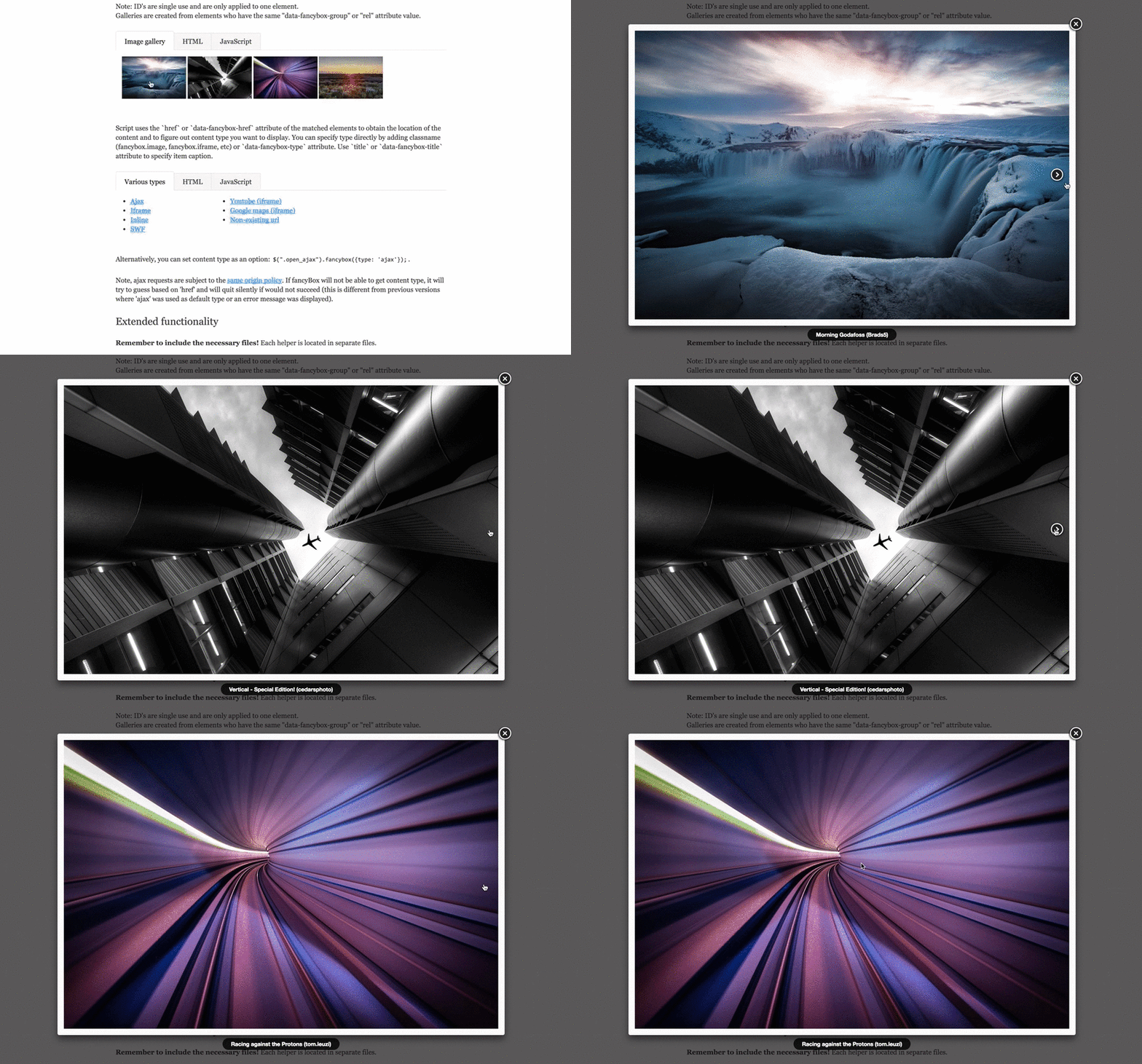
Drawing and Animation
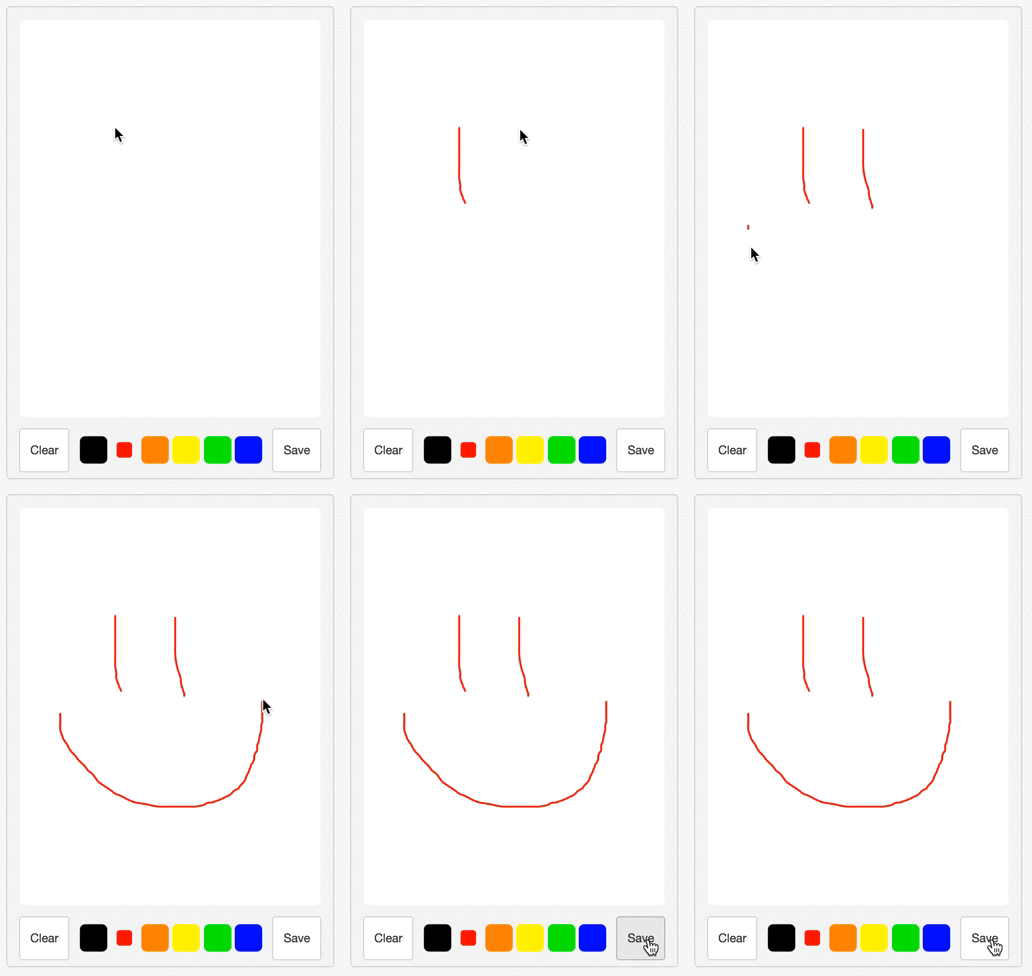

Image Credit: Bizggro.com
Full-featured Web & Mobile Applications
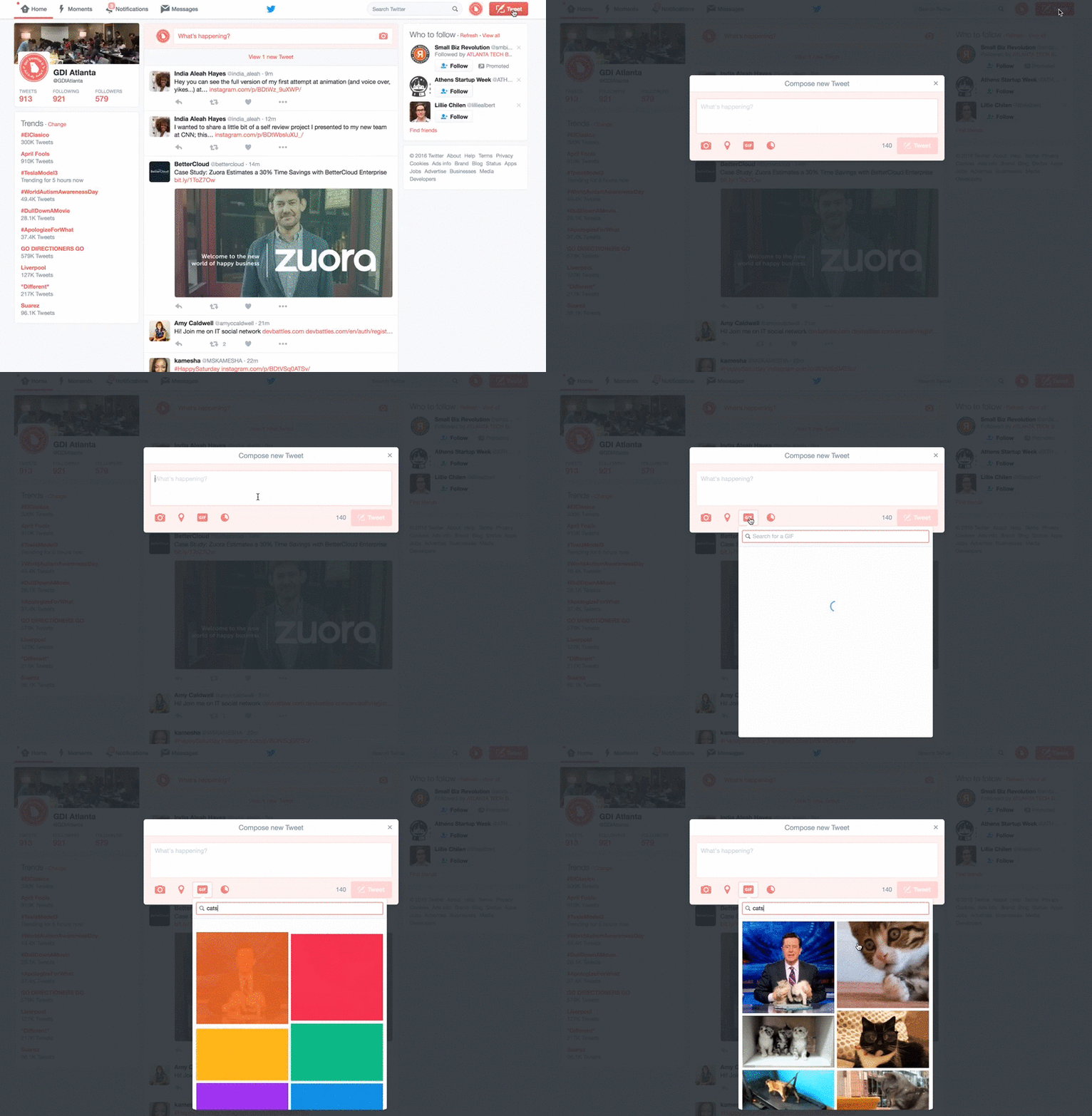
Well-Known Apps Built with JavaScript


JavaScript is Everywhere

Eric Elliott (Medium)
JavaScript Rules

Getting Started with JavaScript
Tools and Environment
Browsers:
- Chrome
- FireFox
- Safari
Editors:
- Visual Studio Code
- Atom
- Brackets
Web-Based Tools and Environment
-
REPL -
replit.com
(Recommended for this workshop)
- Codepen - codepen.io
- CodeSandbox - codesandbox.io
Get Started: replit.com
- Create a free account on REPL
- Or an online editor of your choice
replit.com Demo
Script Tags
Similar to writing CSS inside of HTML with the style tag,
JavaScript can be written inside of HTML with the script tag
The browser reads anything inside of the script tag as code, not
content
<script>

  Javascript code goes here

</script>
Let's Develop It!
-
Create a set of opening and closing
<script>tags inside yourindex.htmlfile - Write the code below in between the script tags
alert('Hello World!');
- Click the green
"RUN"button at the top of REPL
<script>
  alert('Hello World!');
</script>
JavaScript Files
Similar to CSS again, JavaScript can be separated into its own file and the file linked to the HTML file
<script src="path/file.js"></script>
Let's Develop It!
- Create a
script.jsfile -
Inside your
index.htmlfile, copy the code between the script tags and paste the code to thescript.jsfile in REPL - Delete the code between script tags, but not the tags themselves
Let's Develop It!
- Add a
"src"attribute to the opening script tag -
Include the name/location of your script.js file as the
srcvalue (See code snippet below) - Run your code!
<script src="script.js"></script>
JavaScript Console
- JavaScript environment in your browser
- Available in all browsers (Developer Tools)
- Allows you to test and debug code; check code output
- You can write JavaScript in the console
JavaScript Console

Let's Develop It!
- Type the following code into your
script.jsfile
console.log('Hello World!');
Let's Develop It!
- Now open your
index.htmlpage in a new window - Note: It's okay if the page is blank
-
Use the following keyboard shortcuts to open the Dev Tools or Developer
Tools panel in Chrome:
-
Mac:
Command + Option + J -
Windows:
Control + Shift + J
-
Mac:
- Select the console panel
- What do you see in the console?... 👀
Let's Develop It!
- Type the following commands into the console; hit enter after each line:
-
console.log('JavaScript rules!') 2 + 3 + 10
Displaying JavaScript Output
-
alert()opens a pop-up modalalert('Hello World!'); -
console.log()prints to the consoleconsole.log('Hello World!');
document.write()
Another way to output JavaScript is to an HTML page
There are several methods to do this; document.write() is a quick
and simple one
document.write('Finally, text on an actual page!');
Caveat: This method should only be used for testing; never in actual or production code
HTML DOM Document write() (w3schools)
Comments
You can leave comments in your code—these are notes that people can read but that browsers will ignore
-
Use
/* */to write multi-line comments -
Use
//to write single-line comments
/*
I can write long comments or comments that
span multiple lines: Lorem ipsum dolor, sit
amet consectetur adipisicing elit. In, iure?
*/

// OR Write one line comments

console.log('Hello!'); // My first JavaScript code
Let's Develop It!
In your
script.js
file:
- Add a comment to your code or disable a line of code
- Change the
alertmessage - Add a
console.logmessage and check it in the console - Print a message to the page with
document.write
JavaScript Syntax
Variables
- A variable is a "named storage or container" for data
- Variables are used to store or hold values
- Values stored in variables can change

Photo credit: Giulia Gasparro
Declaring a Variable
To declare (create) a variable, type the word
let and the variable name.
let numberOfKittens;It is a good idea to give your variable a starting value. This is called initializing the variable.
let numberOfKittens = 5;Variable Values
-
When you first create a variable, it does not have a value
-
Until it is initialized (given a defined value), the value or state of a
variable is
undefined
-
Until it is initialized (given a defined value), the value or state of a
variable is
- Variables can hold different types of data
- The value of a variable can change over time
Naming Variables
- Variable names are case-sensitive
- A new variable should have a unique name
-
Variable names need to start with an alphabetical letter, or
$(the dollar sign), or_(an underscore)
Naming Variables
- Write variable names for readability--for clarity and meaning
-
Phrases or multiple words can be used as variable names
- Use the camelCase writing pattern to combine multiple words
-
Avoid
reserved words
- A reserved word is a keyword that has an assigned meaning in JavaScript
Variable Naming Examples
Good ✅
- userEmail
- temperatureInCelcius
- isValidNumber
Not So Great ❌
- x
- _a3be53
- str
Using a Variable
Once you have created a variable, you can use it in your code
let numberOfKittens = 5;

console.log(numberOfKittens);
Let's Develop It!
In your script.js file:
- Create a variable and give it a valid name and value
-
Display the variable value using any of the three output methods you've
learned:
console.log()oralert()ordocument.write()
Data Types
Basic Data Types
string: string of characters
let userName = 'Jane Lane';number: integer or floating points (decimal)
            let myAge = 30;

let price = 34.99
- Other data types: boolean, undefined, null, array, object, function
Playing with Strings

Photo credit: Mike Lawson
Strings
- Variables can be strings (groups of characters)
- Strings can be written with single or double quotes
let kittensName = 'Fluffy';- To use a quote in your string, you'll need to "escape" it with a backslash
console.log('I\'d like to use an apostrophe');Concatenation!
aka combining strings

Photo credit: Matt
Combining Strings
We can join or link strings together with a
+ (plus) sign, which is also known as
the string operator or concatenation operator
  let kittensName = 'Fluffy ';

  let fullName = kittensName + 'McDougle';

  console.log(fullName); // Outputs 'Fluffy McDougle'
Let's Develop It
In your
script.js
file:
- Create two variables to store a first name and a last name
- Concatenate or combine the two string variables and store the result in a third variable
- Display your result with an output method
Numbers!

Photo credit: WJ van den Eijkhof
Numbers
Variables can be numbers--either integers (whole numbers) or floats (decimals)
let numberOfKittens = 5;

let cutenessRating = 9.6;
Arithmetic Operators
When variables store numbers as their values, we can perform calculations with variable names!
let numberOfKittens = 5;

let numberOfPuppies = 4;

let numberOfAnimals = numberOfKittens + numberOfPuppies; // 9
Arithmetic Operators
| Example | Name | Result |
|---|---|---|
-a |
Negation | Opposite of a. |
a + b |
Addition | Sum of a and b. |
a - b |
Subtraction | Difference of a and b. |
a * b |
Multiplication | Product of a and b. |
a / b |
Division | Quotient of a and b. |
a % b |
Modulus | Remainder of a divided by b. |
Let's Develop It!
In your
script.js
file:
- Create two or more variables; assign them numerical values
- Experiment with some of the math operators--perform a few calcuations with the variable names
- Display or output your results
Combining Strings and Numbers
- We can combine or concatenate strings and numbers
- JavaScript will treat the number like a string
let numberOfFruit = 6;

let typeOfFruit = 'bananas';

let allTheFruit = 'I have ' + numberOfFruit + ' ' + typeOfFruit + '!';

console.log(allTheFruit);

// Result: I have 6 bananas!
Let's Develop It
Time to build your first JavaScript "app"!
Your code should:
-
Include variables for the bill before
the tip, the tip percentage, and the
total bill after the tip
- Come up with your own numbers for the bill and the tip percentage
- Use the arithmetic operators to calculate the total bill
- Output a sentence: "Your total bill, including tip, is: $(your-result)"
Control Flow

Photo credit: DennisM2
Control Flow
Control flow in JavaScript is how the computer runs code from top to bottom, until it hits a statement, structure or code that changes the flow
Control Flow (MDN)
The if Statement
Use if statements to decide which lines
of code to execute, based on a condition
if (condition) {
  // statements to execute
}
let age = 30;

if (age > 18) { // if age is greater than 30

  console.log('You are an adult');

}
Comparison Operators
| Operator | Name |
|---|---|
a === b |
Identical |
a !== b |
Not identical |
a < b |
Less than |
a > b |
Greater than |
a <= b |
Less than or equal to |
a >= b |
Greater than or equal to |
Let's Develop It!
-
Make a variable called
temperature - Write code that tells you to put on a coat if it is below 50 degrees
let age = 30;

if (age > 18) { // if age is greater than 30

  console.log('You are an adult');

}
Syntax example
Even more control flow

Photo credit: Thomas Hawk
The if/else statement
Use the else statement to provide an alternate set of
instructions
if (condition) {

  // what to do if condition is true

} else {

  // what to do if condition is not true

}
The if/else statement
if (condition) {
  // code to execute if true
} else {
  // code to execute if false
}
let age = 30;

if (age >= 16) { // Greater than or equal to

  console.log('Yay, you can drive!');

} else {

  console.log('Sorry, you have to wait ' +
  (16-age) + ' until you can drive.');

}
Let's Develop It!
Modify your "wear a coat" code for these new conditions:
- If temperature is less than 60 degrees, wear a jacket
- Otherwise, wear whatever you want
Functions

Photo credit: Rick Payette
Functions
- A function is a block of code with statements to perform a given task
- Functions are reusable
- Functions are also a data type
What is a Function? JavaScript Function Examples (FreeCodeCamp)
Declaring Functions
-
Start with the
functionkeyword -
Give your function a name, followed by parentheses
(), and then followed by curly brackets{} - Write code / instructions inside the curly brackets
function functionName() {

  CODE INSTRUCTION

}
Function Naming
Similar to variables, function names:
- are case-sensitive
- start with lowercase alphabetical letters
-
should be descriptive
- A good practice is to write function names that indicate an action
function displayParrotFacts() {

  console.log('Some parrot species can live for over 80 years');

}
Using Functions
But declaring a function is not enough; the function needs to be called or invoked
To invoke (run) a function, type its name, followed by parentheses
()
functionName(); displayParrotFacts();Functions Recap
- A function is a block of code you can reuse many times
- Whenever you invoke a function by using its name, you tell the browser to run the code inside the function
- You must invoke a function to use it
Let's Develop It!
-
Write (declare) a function that outputs the sentence:
-
This is the year I learn JavaScript!
-
- Then call (invoke) that function
function functionName(){

  Code Instruction

}

functionName();
Functions and Variables
We can declare and work with variables inside a function
function displayFullName(){

  let firstName = 'Kamala';

  let lastName = 'Harris'

  console.log(firstName + ' ' + lastName);

}

displayFullName();
Parameters & Arguments
Functions can be declared with
parameters and can run or accept input
called
arguments
// kittenName is a parameter

function callKitten(kittenName){

  console.log('Come here, ' + kittenName + '!');

}

// 'Fluffy' is an argument

callKitten('Fluffy'); // Output: 'Come here, Fluffy!'
Parameters & Arguments
parameters are placeholders for the
actual values (arguments) that we
specify for the function to use when it is invoked or called
function addNumbers(a, b){ // a and b are parameters

  console.log(a + b);

}

// 5 and 7 are arguments
addNumbers(5, 7);  // Outputs: 12

// Another Example:

let num1 = 9
let num2 = 12

// num1 and num2 are arguments
addNumbers(num1, num2); // Outputs: 21
Parameters and Arguments make functions reusable
Let's Develop It!
Writing functions with parameters and arguments
- Declare a function called 'createIntro'
- Add two parameters called 'person' and 'animal'
- The function displays a sentence that uses the parameters to write an intro such as this:
- Hi, my name is [PERSON] and my favorite animal is the [ANIMAL]
- Call the function with different sets of arguments
- 🔥 Extra Challenge:
- Outside the function, declare two variables to hold a name value and an animal value
- Pass those variables as your arguments
Let's Put it All Together! 🔥🔥🔥
Strings. Numbers. If/Else Statements. Functions.
Let's Develop It!
- Write a function to calculate a person's age and then display whether or not they are a Millenial/Gen Z or a Gen X/Baby Boomer
- Example:
- 'Hi Jaden. Based on your age, you are either a Gen X or a Baby Boomer'
You did it!

Photo credit: Hannah Busing
Give Us Your Feedback
Take the survey linked in the course's video description.
Resources
- FreeCodeCamp JavaScript Track
- Codecademy
- Scrimba
- Udemy
- Upcoming GDI Courses
Upcoming GDI Courses and Events
Keep in Touch
Join Our Slack Community